Retrieval
Retrieval is a per-code query view: pick one code from your codebook and see every approved passage tagged with it, pulled from every document in your project, in one list. No more clicking through documents one at a time to remember everywhere a theme showed up — Retrieval already did that for you.
Opening Retrieval
Click Retrieval in the left sidebar. The screen splits into two panes: every code in your codebook on the left, with a live reference count next to each one, and the passages for whichever code is selected on the right.
Child codes are indented one level under their parent in the list, but selecting a parent code (like “Ability”) only shows passages coded with that exact code — its children are tracked and counted separately.
Reading a result
Selecting a code shows a summary card up top — its name, definition, and total reference count — followed by a card for every passage.
The character range (ch 461–489, for example) is the same offset the app uses internally to place highlights — it's what makes “Open in document” land on the exact words, not just somewhere in the right paragraph.
Searching and sorting
With a code that has more than a handful of references, the search box and sort toggle keep the list manageable.
Jumping straight to the passage
Every result card ends with an Open in document → link. Clicking it doesn't just open the document — it switches to Focus Mode and smooth-scrolls the exact coded passage into the center of the screen, using the same character range shown on the card.
Downloading your results
Two export buttons sit in the top-right of the Retrieval screen. Both export whatever is currently displayed for the selected code — so if you've typed a search filter, the export only includes the filtered passages, not the full set.
Both downloads start immediately — there's no dialog to confirm and no server round-trip, since both files are built client-side from data already loaded in the page.
What the exported report looks like
Here's the actual .docx produced by clicking Export Document on the “Ability” code shown throughout this page, opened straight from the download:
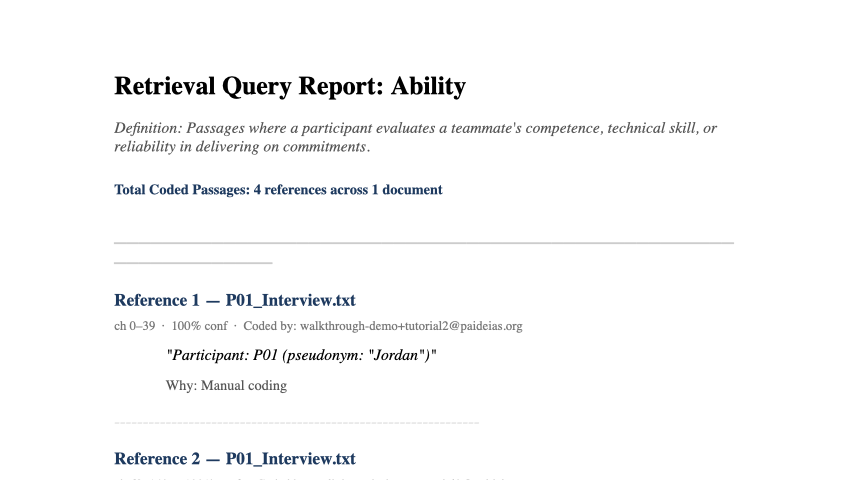
The file name always follows the pattern Paideias_Query_<CodeName>.docx (or .csv), with spaces in the code's name replaced by underscores — so filtering, sorting, or exporting a different code just means clicking a different row on the left and exporting again.
Common use cases
Pulling quotes for a write-up
Select the theme you're writing about, sort by confidence if you want the clearest examples first, and either read straight off the screen or export the .docx report as a starting point — every quote is already attributed to its source document and character range.
Coding quality check
Select a code and scan the list. A passage that clearly doesn't belong is a sign to click Open in document →, fix it via Change code or a boundary adjustment, and move on.
Preparing for agreement analysis
Before running Inter-coder Agreement, use Retrieval to sanity-check how one coder applied a code across the project — it's a faster read than opening every document individually.