Export & Download
When your coding is done — or just far enough along to share — Paideias packages your codebook, documents, and every approved highlight into a file you can hand to a supervisor, load into NVivo, or crunch in R. Everything happens in your browser; nothing is uploaded anywhere to generate the file.
The Export screen
One screen, three formats. Pick a format on the left, and the summary panel on the right updates live to show exactly what will be in the file before you generate it.
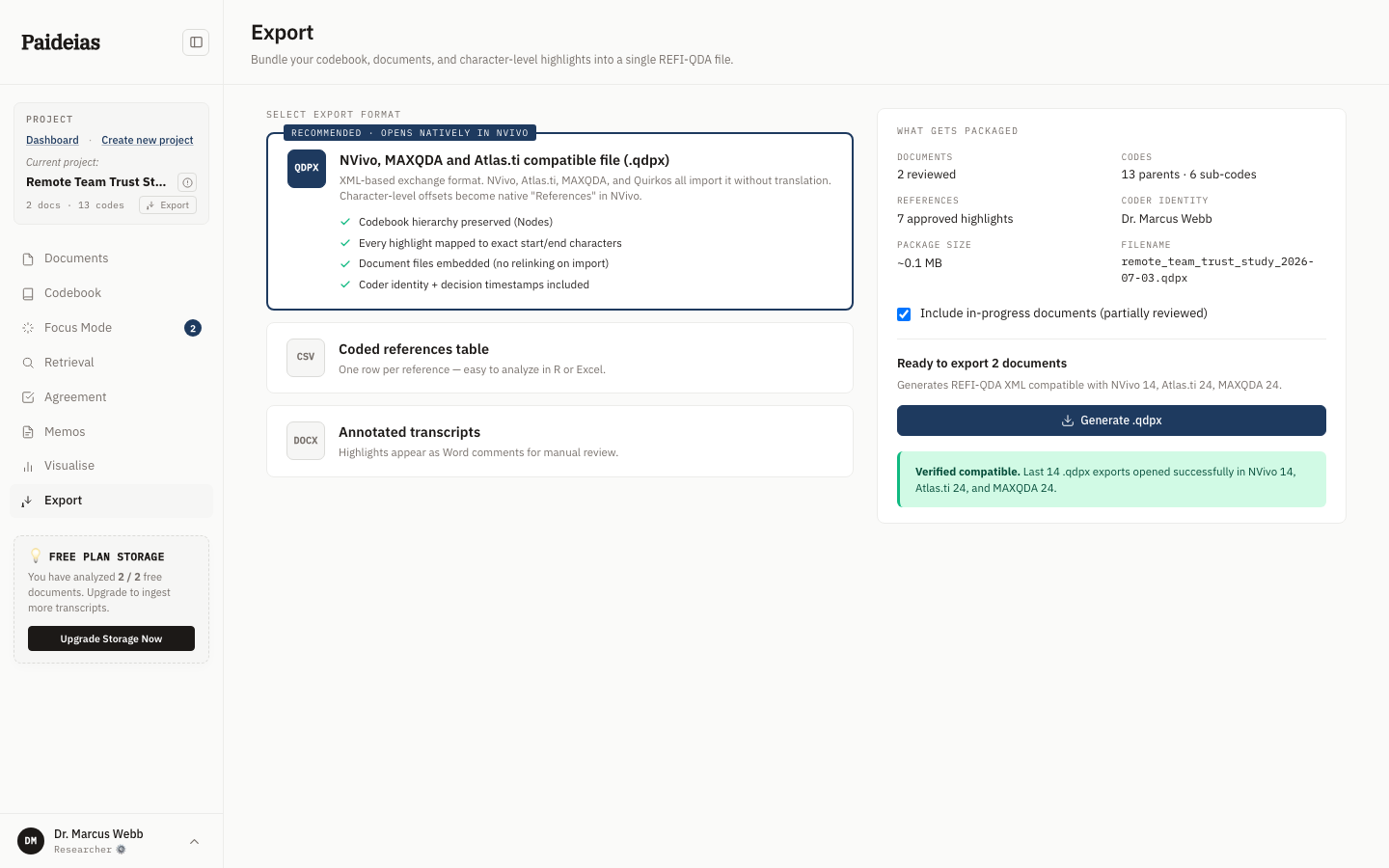
The three export formats
All three pull from the same underlying data. The difference is which tool opens the result.
QDPX — for NVivo, MAXQDA, and Atlas.ti
QDPX is the REFI-QDA standard exchange format for qualitative analysis software. It's the recommended default in the Export screen because it's the only format that round-trips your full project structure — codebook hierarchy, exact character-level highlight positions, source documents, and coder identity — into another QDA tool without losing anything.
- Codebook hierarchy preserved as NVivo-style "Nodes"
- Every approved highlight mapped to its exact start/end character position in the source text
- Document files are embedded directly in the package — the receiving tool doesn't need you to relink source files
- Coder identity and decision timestamps are included per highlight
Under the hood it's a zip archive containing a REFI-QDA XML project file (project.qde) plus a Sources/ folder with your documents as plain text — the same structure NVivo, Atlas.ti, MAXQDA, and Quirkos all expect.
CSV — for spreadsheets and statistics
A flat table, one row per approved highlight: document, speaker, code, sub-code, the quoted text, its character start/end offsets, the AI's confidence score, and the coder's initials. No codebook hierarchy, no document text beyond the quoted excerpt — just the coded data, ready to open in Excel, Google Sheets, R, or Python.
DOCX — annotated transcripts for review
One Word document per source document, with your original text untouched and every approved highlight added as a margin comment naming the code. This is the format for someone who doesn't use QDA software at all — a supervisor, a co-author, a committee member — since Word is all they need to see exactly what was coded and why.
What's in the "What gets packaged" panel
The right-hand panel is a preview, not a promise — it recalculates the moment you change the format or the in-progress toggle, so what you see is exactly what you'll get.
| Field | What it means |
|---|---|
| Documents | How many source documents are included. Counts documents marked completed, plus in-progress ones if the checkbox below is ticked. |
| Codes | Your full codebook size — parent codes and sub-codes — regardless of how many are actually used in an approved highlight. |
| References | The number of approved highlights that will actually appear in the file. This is the number that matters most. |
| Coder identity | Your account name, recorded against the export. |
| Package size | An estimate based on document length and highlight count — the real file is usually close to this. |
| Filename | Generated automatically from your project's name and today's date, e.g. remote_team_trust_study_2026-07-03.qdpx. |
Choose a format
QDPX to continue in another QDA tool, CSV to analyze the data yourself, or DOCX to share a readable annotated transcript.
Decide whether to include in-progress documents
The "Include in-progress documents (partially reviewed)" checkbox is the only inclusion control on this screen. Checked, documents you're still actively coding are included alongside fully completed ones. Unchecked, only completed documents make the cut — useful when you want a clean snapshot and don't want half-coded transcripts in the file.
Check the summary panel
Confirm the reference count matches what you expect. If it's lower than you thought, you likely have unapproved suggestions sitting in Focus Mode.
Generate and download
Click Generate. The file is built in your browser and downloaded directly — nothing is sent to a server to produce it.
Choosing the right format
| Your situation | Format |
|---|---|
| Continue analysis in NVivo, MAXQDA, or Atlas.ti | QDPX |
| Run statistics or your own analysis in R, Python, Excel, or Sheets | CSV |
| Share coded transcripts with a supervisor or co-author who doesn't use QDA software | DOCX |
| Archive a project in a standard, tool-agnostic format | QDPX |
| Attach coded data as a supplementary file for a journal submission | CSV or QDPX |